
If you’ve ever stared at a blank diagram and thought, “I know what I want to show, I ‘m just not sure about the PlantUML,” then the PlantText AI window may become your new favorite coworker.
The AI window comes pre-loaded with common use cases you can pick from a dropdown: generate code stubs, refactor a diagram, transform from one diagram type to another, or generate test data. You can really shorten your workflow in just a couple of clicks.
It also lets you work with diagrams in natural language. You can describe what you want and ask for changes without manually writing one line of PlantUML.
Let’s take a look at some practical examples.
1. Refactor an existing diagram
AI isn’t only useful when you’re starting from scratch. Sometimes the diagram already exists, and has become a little… enthusiastic. Forty-five classes, seventeen relationships, three different naming conventions, and one mysterious arrow nobody is willing to delete because someone must have put it there for a reason.
Ask the PlantText AI window to refactor it. PlantText makes it super easy. Just select Improve > Refactor the current diagram from the Examples dropdowns. The Question box will pre-populate with instructions, which you can alter if you wish. Note the Include Diagram checkbox is checked. This ensures your current diagram is sent to the AI along with the text in the Question box.
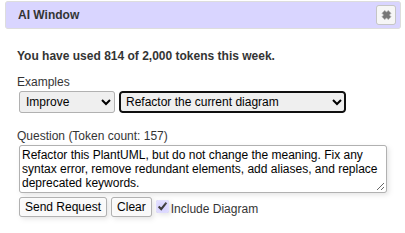
Click Send Request, and PlantUML will be returned in the Answer box. Click Replace Diagram in Editor, and boom! Your diagram has been refactored for you.
Here you’re not asking AI to create a new design. It’s serving as a second pair of eyes. It can reduce repetition, improve organization, make naming more consistent, and make your diagram more readable.
Another example along these lines is getting AI to correct a diagram when you have a PlantUML error. The dreaded green and black screen of death. Just select Modify Diagram > Validate the current diagram, and AI will return valid PlantUML in the Answer box. Hit Replace Diagram in Editor, and you’ve just fixed your syntax without breaking a sweat.
2. Generate code stubs from your diagram
Suppose you’ve created a class diagram describing part of an application. Rather than stopping there, you can have AI generate implementation scaffolding. PlantText makes it incredibly easy, with just a few clicks.
Let’s say you’re starting with this class diagram for Dwellings.
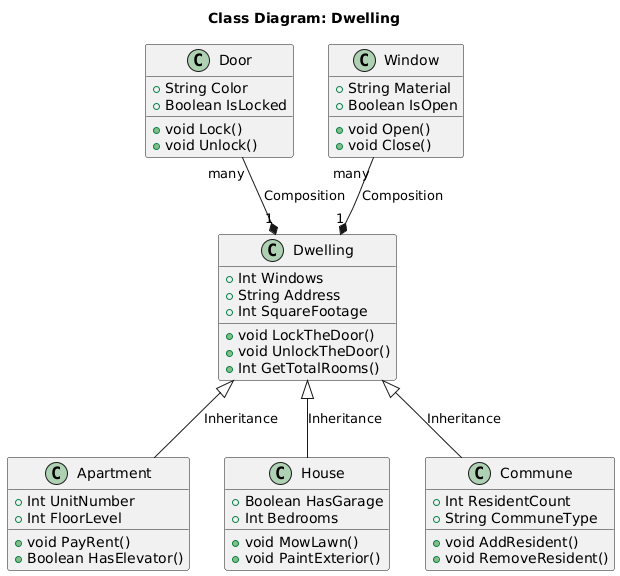
From the PlantText AI window, select Code Stubs > Java code stubs. Note the Include Diagram checkbox will be checked, so your class diagram is sent to the AI along with the request. Click Send Request. (PS. There are 7 different languages to choose from in the dropdown, and if the one you want isn’t listed, just replace it in the Question box.)
You’ll get a result back in the Answer box that looks something like this:
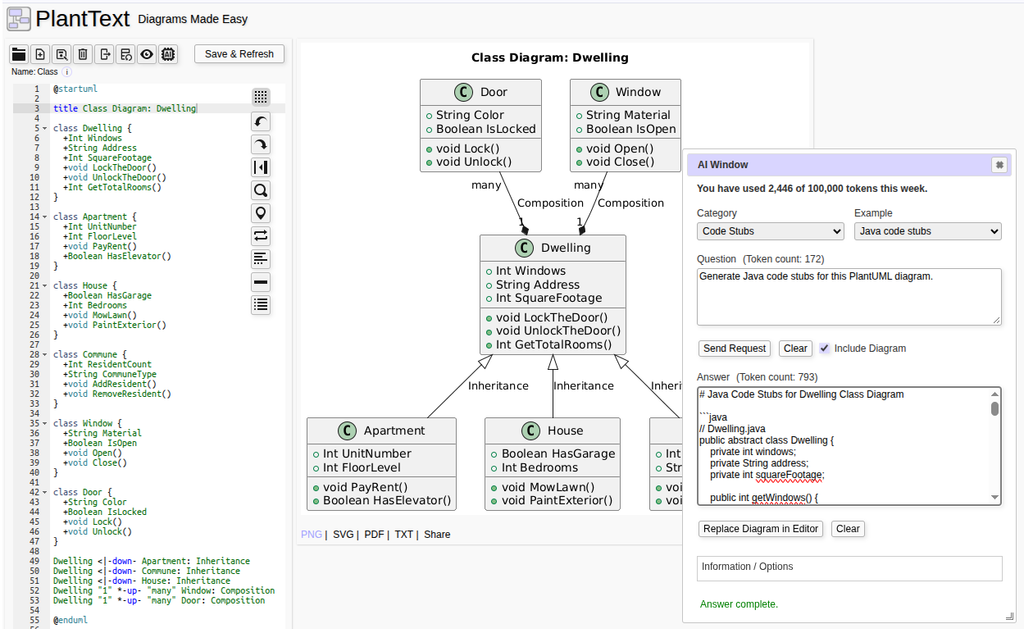
That’s a big head start.
The result doesn’t have to be production-ready code. Code stubs are useful because they give you a starting structure without understanding all of your application’s business rules. The diagram becomes a bridge between architecture and implementation. And if the design changes, you can go back to the diagram and regenerate the scaffolding rather than manually updating everything from scratch.
That’s especially handy during prototyping, API design, and early-stage development, when you’re trying to answer “Does this design make sense?” before investing heavily in implementation.
3. Generate realistic test data
Diagrams often describe data structures. Developers then need data to test those structures. Conveniently, the PlantText AI window can generate some test data for you in a few clicks.
Select Test Data > and then choose either JSON, SQL or XML. Click Send Request and your test data will return in the Answer box. And yes, if you selected JSON, you can click Replace Diagram and see the JSON visualized. (Didn’t know PlantText can visualize JSON? You can read more about that here.)
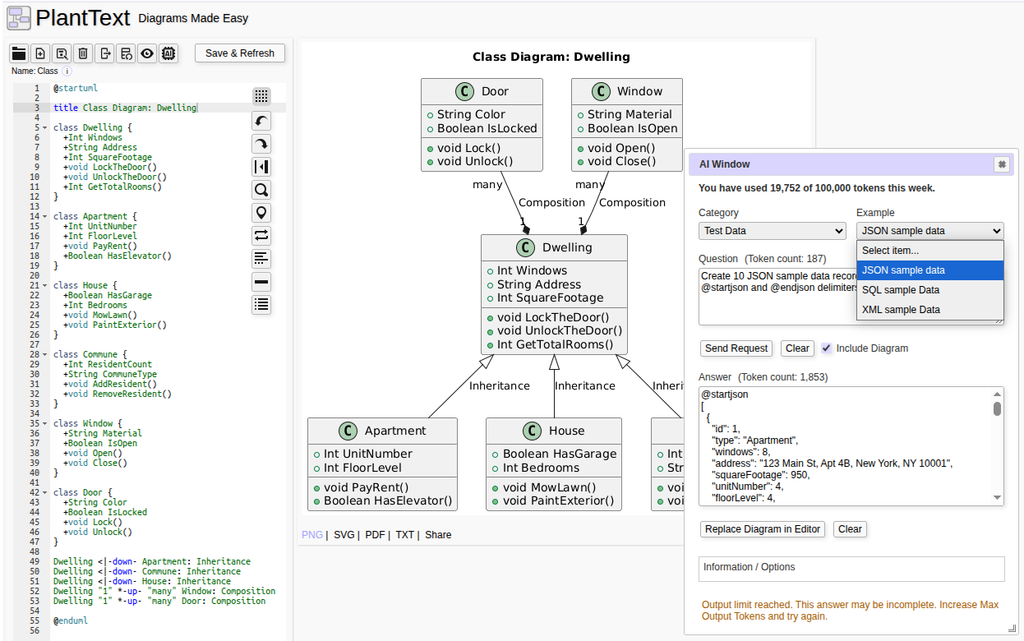
In this example, you’ll see the AI window has informed us that we’ve reached the output limit. Limits are set in the Information/Options box to prevent you from burning through all your tokens too quickly in the case of a verbose response. You can adjust them. Of course, PlantText Pro gives you 100,000 tokens per week, so if you’re a Pro user you don’t even need to worry about that!
4. Turn a verbal description into a diagram
This may be the most powerful example of all. Stay with me, because we’re going to walk step-by-step through several iterations of this diagram.
Imagine you’re designing a new web application. You might describe its architecture like this:
“Create a PlantUML component diagram for a web application with a React frontend, an API server, a PostgreSQL database, Redis for caching, and an external payment service. The frontend communicates with the API over HTTPS. The API accesses both PostgreSQL and Redis and calls the payment service.”
Instead of manually typing the PlantUML syntax to depict that architecture, you can give that natural language description to the PlantText AI window and click Send Request. The AI can turn that nugget of an idea into a diagram you can immediately inspect and refine.
Unless it comes back with syntax errors at first, like the example below. But not to worry! A few more iterations and we can get the AI to return exactly what we’re looking for. I’ll show you how.
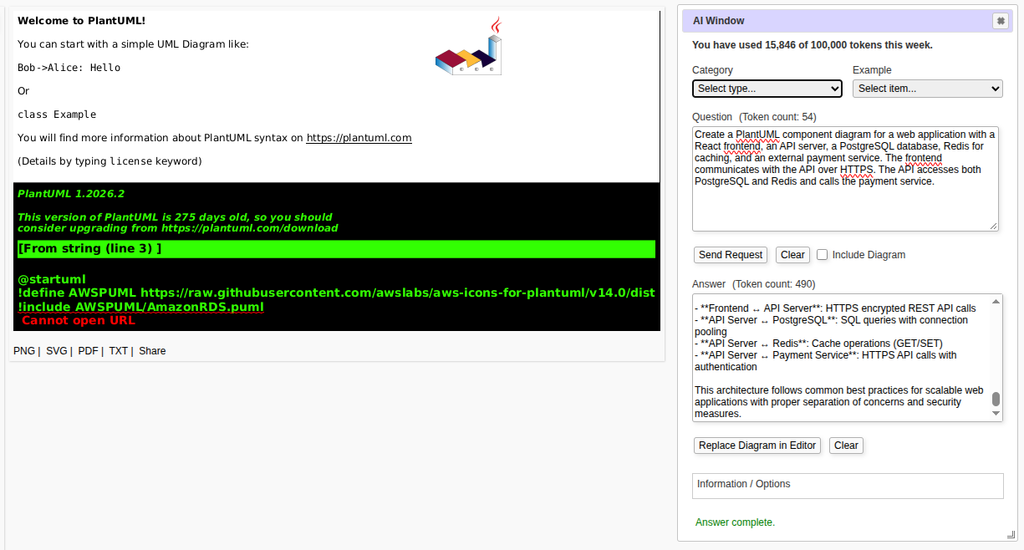
Replace the Question with the quote below and make sure to check the Include Diagram checkbox for this next request so the AI knows what diagram to refine. Also, make sure to press Replace Diagram in Editor after you get your answer, so it becomes the (new) diagram in the editor.
“Don’t allow any !include or !define statements. Just basic PlantUML. Use simple connection syntax. Direct notes to bottom.”
That will return the diagram below. Well, that is a lot better! There are no syntax errors, but still it doesn’t look great. Some of the text is showing up on top of borders, making it hard to read.
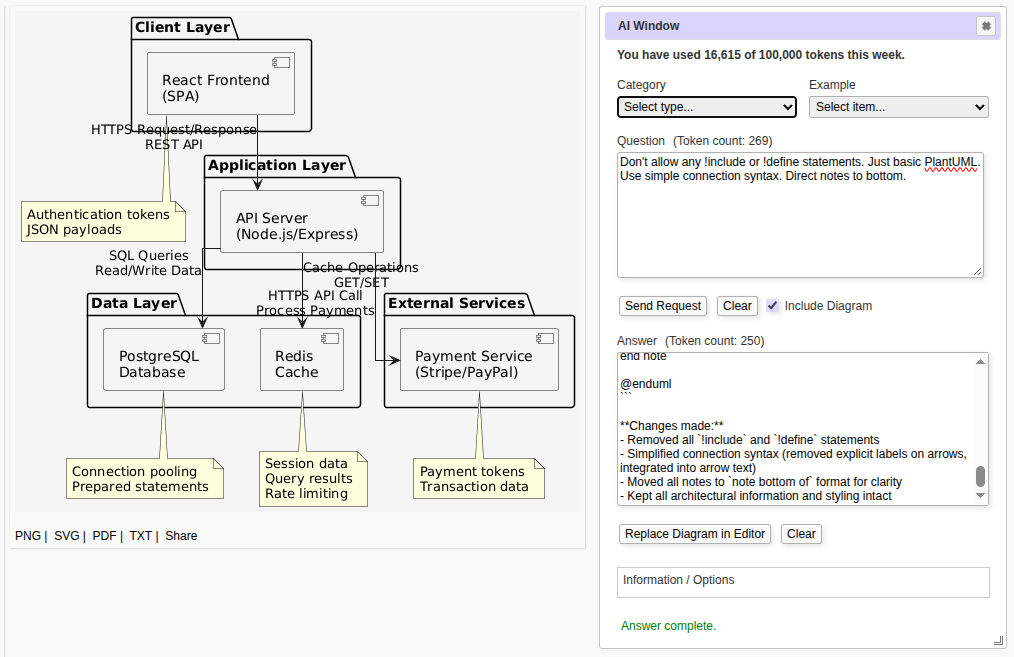
So let’s send our next request with this text, and again Replace Diagram in Editor:
“Make connectors much longer so text is not overlapping.”
That returns a diagram with proper syntax that is readable and looks really good. We have the diagram we want in just a few iterations.
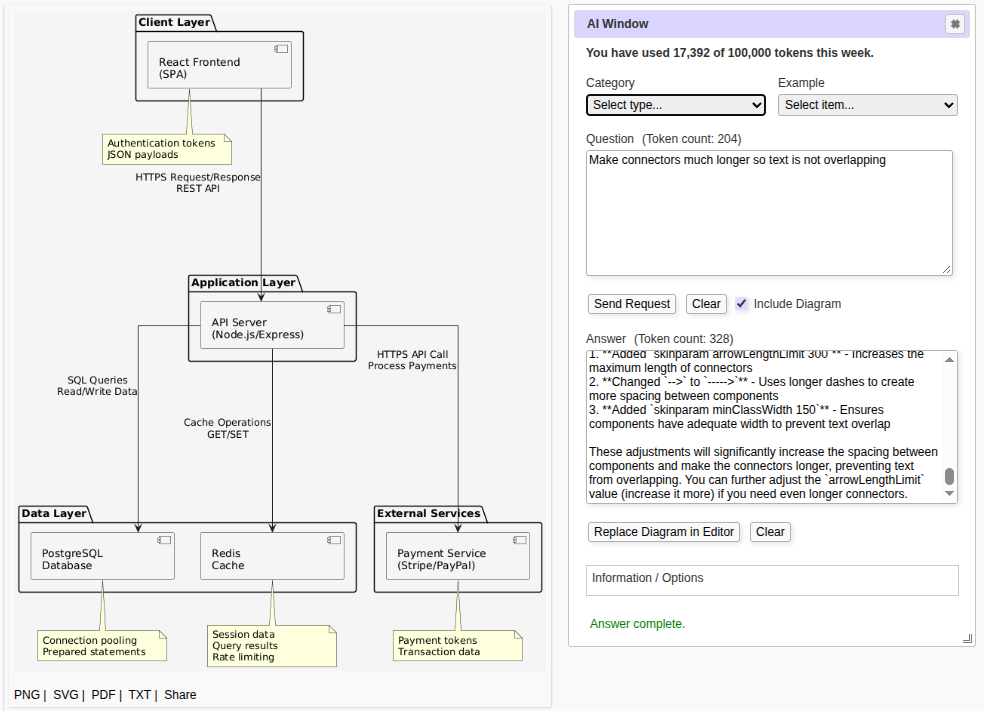
Working with AI in this way (using natural language) is particularly useful early in a project, when you’re still figuring out the architecture and the diagram is changing faster than you can reasonably maintain it.
The real advantage: fewer context switches
The biggest benefit of AI in PlantText (besides reducing how much PlantUML syntax you need to type) is that it reduces the number of times you have to leave the diagramming environment to do something else. You can move from a verbal requirement to a diagram, from a diagram to code scaffolding, from a model to test data, or from one diagram type to another.
And because PlantText is built around text-based diagrams, the underlying representation remains editable, inspectable, and reproducible. You’re not handing your architecture over to a mysterious black box and hoping for the best.
You’re using AI to accelerate the parts of development that are tedious, repetitive, or simply get in the way of thinking. And if the AI produces something that makes you say, “That’s… not what I meant,” you’re still in PlantText. Just tell it what you actually meant.